
Follow this article to learn how to import Revit (.rvt) files into cmBuilder, when to use IFC exports, and best practices for preparing your Revit models.
Before you start:
- You can import Revit (.rvt) files directly into cmBuilder and filter elements after import.
💡 Note: If you need to import specific Revit phases, export the desired phase as an IFC from Revit before importing it into cmBuilder. cmBuilder currently imports all geometry from a Revit file regardless of its assigned phase.
- Do not export FBX files from Revit! Your model will lose the colors and the 3D parts will be disorganized and hard to create a sequence with.
There are two main options to export a file from Revit, but you should start by filtering your model to have only the parts you need.
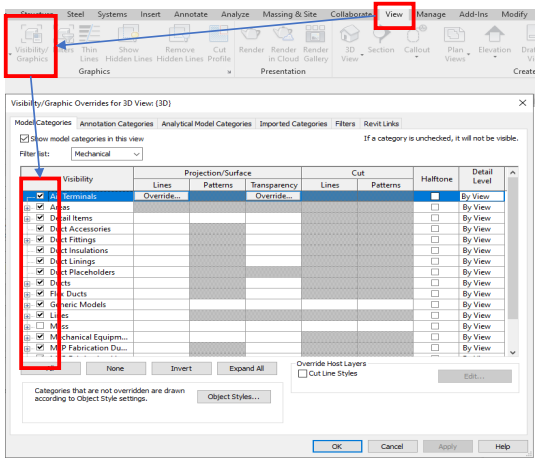
- Use Visibility Graphics to filter elements by category and remove nonessential elements
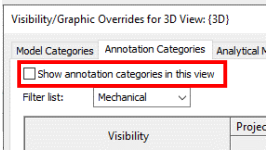
- From Annotation Categories - Deactivate Show annotation categories in this view
💡 Note: Revit phases are not recognized when importing a native Revit (.rvt) file. All geometry from the main Revit model is
imported regardless of its assigned phase. To import a specific phase, export the desired phase as an IFC from Revit and import
the IFC into cmBuilder.
💡 Note: We do not recommend exporting FBX models from Revit as it will disorganize the file structure and make it harder to work with.
1. Export to IFC
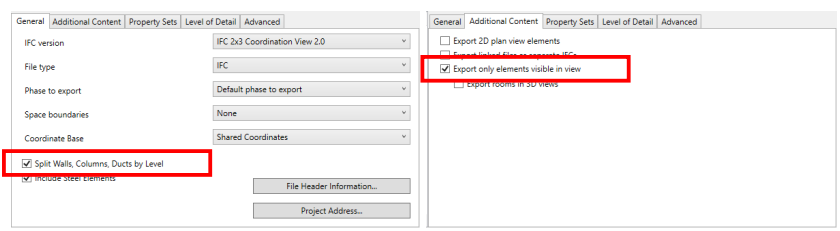
- Under General, select Split Walls, Columns, Ducts by Level
- Use IFC 2x3 or IFC 4
- From Coordinate Base, select Project Base Point
- Under Additional Content, select Export only elements visible in view
- Click Export
-
If you are working with Linked Models, select the option Export in same IFCSite
- If you are working with Revit "Parts", you should also enable the option Use active view when creating geometry under the Advanced tab.
💡 Note: The Model Appearance and Tree Structure in cmBuilder will depend on how it is converted originally.
Advanced instructions
Tips:
- Split elements by level wherever possible and ensure that each element is assigned to the correct 'Reference Level'
- If the reference level parameter does not exist, follow the instructions below to create a text parameter
1. Group elements with Assemblies
If the imported IFC model tree structure is not user friendly for the cmBuilder sequence. The model can be split/grouped by creating an element assembly in Revit.
- Select multiple objects to be grouped together - the Modify tab will open
-
Click Create Assembly, and enter a name and naming category (group type), click OK
- 💡 Note: Sometimes Revit won’t allow you to create an assembly due to some of the selected objects being in an existing group or assembly. Select the objects and click Ungroup or Disassemble. Now try again to create the assembly.
-
Under Manage, go to Project Parameters > Add
- Enter the name "IfcSpatialContainer" under Parameter Data
- Set Type of Parameter to "Text"
- Select Vary by group instance, and Check All
- Enter the value for "IfcSpatialContainer" - Name the created assembly based on grouping. Eg. "Area 1", and click Apply
- Repeat the process for every created Assembly
- Export to IFC as described above
2. Split the model with Section Box
- To split only particular elements, for example slabs, first hide all other elements from visibility graphics
-
From the Properties side menu, scroll down to Extents
- Check Section Box
- Pull the arrow handles to adjust the section box - everything outside the section box will not be visible
- Hint: Use orthographic views (top, front, left, etc.) to more accurately adjust the section box
- Click Apply
- Export an IFC as above and ensure 'Export elements only visible in view' is checked upon export
Tips & FAQ
When I import a Revit file, will I get all the phases as well?
No. cmBuilder does not currently import Revit phase information. Importing a Revit (.RVT) file brings in all geometry from the main model, regardless of its assigned phase, workset, or visibility settings. If you need to import a specific phase, apply the desired phase filter in Revit and export the model as an IFC. You can then import the IFC into cmBuilder to include only the filtered geometry.
Further Reading:
Comments
Please sign in to leave a comment.