
Available with the following Subscriptions: All Subscriptions
Available for the following Project Roles: viewable by All Roles, editable by Editor and Admin
The Project Schedule is the set of Milestones in a Scenario. Milestones can be accessed via the Timeline as well as through the Project Schedule Sidesheet. Both can be used to manage Milestones including creating new Milestones and editing existing Milestones. The Project Schedule Sidesheet can also be used to import and export schedule files.
💡Note: A Scenario must contain at least one Milestone. To learn how to create a Milestone, see Create Milestones.
This article contains the following sections:
- Using the Timeline to Manage Milestones
- Using the Project Schedule Side Sheet to Manage Milestones
- Changing the Order of Milestones with the Same Date
- Tips & FAQ
Using the Timeline to Manage Milestones
The Timeline -available at the bottom of the screen while in a Scenario- is the primary way to view, navigate, add and edit Milestones.
- To navigate through Milestones using the Timeline, click on a Milestone and scroll the Timeline by dragging the horizontal scroll bar, or use Shift + mouse scroll wheel. You can also use L/R arrow keys to to step backwards/forwards, while Ctrl + L/R arrow keys can be used to jump to the first or last Milestone.
-
To edit an existing Milestone, double-click the Milestone (1) in the Timeline, then click the name or date to update it. Alternatively, click the three dots (2) and select Edit name or Edit date (3).
- The Milestone unit can be changed from index, to relative or calendar date from the Scenario's Display Settings, learn more in the user guide section 0.2.1 Display Settings.
- To jump to the present day, click the three dots on the far right end of the Timeline, click current milestone to select the Milestone just before today’s date.
Using the Project Schedule Side Sheet to Manage Milestones
The Project Schedule Sidesheet is an alternative to the Timeline when it comes to viewing, navigating, adding and editing Milestones.
- To open the Project Schedule Sidesheet, click the three dots in the Timeline (1) and select Project schedule (2). Or select Project Schedule from the Toolbar on the left.
- To edit a Milestone, double-click the name (3) or date (4), or click the three dots (5) and select Edit name (6) or Edit date (7).
- To add a Milestone, click the three dots (5) and select Add milestone before (8) or Add milestone after (9).
- Add milestone before, to create a new Milestone preceding the selected Milestone.
- Add milestone after, to create a new Milestone after following the selected Milestone.
- The current Milestone is indicated by a blue dot next to the Milestone name.
- To navigate to a Milestone, click Go to milestone (10).
Changing the Order of Milestones with the Same Date
When two or more milestones fall on the same date, you can choose the order they appear.
- Open Project Schedule
- Click the three dots (1) for a milestone and select Edit date (2).
- In the calendar pop-up, click on the sequence dropdown above the monthly calendar.
- Select the order number (1, 2, 3…) (3) for the Milestone.
- The Project Schedule list will update to reflect the new sequencing.
Tips & FAQ
What should I consider when adding Milestones to my Scenario?
Milestones are cmBuilders unit of time, each representing a snapshot in time and typically used to capture the completion or progress of a major task. This usually involves the end-date of major activities on site, and usually ends up being one Milestones per week or month (though in some cases can have milestones closer together, for example if you are communicating the first iteration of a specific sequence that is repeated).
But based on the schedule I have, I need more. What do I cut out?
It is often best to start by creating Milestones for the major phases only, and then insert additional Milestones between to break the phases down as you find the need for more detail. There is no limit to the number of Milestones in a Scenario, but the recommended maximum is ~200 Milestones for practical reasons only.
- For sequencing around a building, you would generally want these Milestones:
- Existing Conditions: 1 milestone
- Mobilization Phase: 0-2 milestones, depending on complexity or duration
- Demolition Phase: 0-3 depending on complexity (though demo/reno projects may require more)
- Excavation Phase: between 1-10 to cover grade, piles, bulk excavation, detailed excavation, and foundation, depending on what your project entails
- Erection Phase: about 1 per floor-cycle
- Usually follow concrete/steel/wood-frame at first, and shift to follow exterior if it is out-of-sync
- For tall towers, once the pattern is established, you can start to group multiple floors per milestone
- Interior Phase: Depending on the project, may follow each floor, or can be completely ignored
- Finish: Usually 1-5 milestones to show surrounding clean-up and the completed building
- 0-3 Milestones for other conditions, such as relocating a crane or office
- Possibly up to 6 slides if you need to slow down and show a specific sequence or operation at one point in the project
- If you are creating an image deliverable, you don't need to display all of this, though you may still want to for planning purposes
- If you are creating a coordination file to communicate to the site team or trades, you may want to go into more detail than this, as people may glance over the overview, and drill into a specific area. This is similar to how some experts use PowerPoint presentations - they have 8 slides, and an appendix of 80 slides to answer questions as they arise.
💡Note: For Scenarios that are not single-tower buildings, the above does not directly apply. However, it can still be used for general guidelines on how to prioritize your Milestones.
How to leverage schedule import?
When going through the schedule, it is best to start with bringing in just a few Milestones from your file, and then add more as you see them needed. If you bring in too many tasks in your first-pass, it might be hard to get it to align to your visualization plan.
It is mainly advised to use the end dates of key activities for your Milestones, because that is when the work is done that you will want to display. However, there are some key activities that you may want to grab the start date of, such as excavation and concrete pouring, where you have to bring heavy machinery onto site.
Comments
I do not have the center icon for creating milestones. How do I get this to pop up?
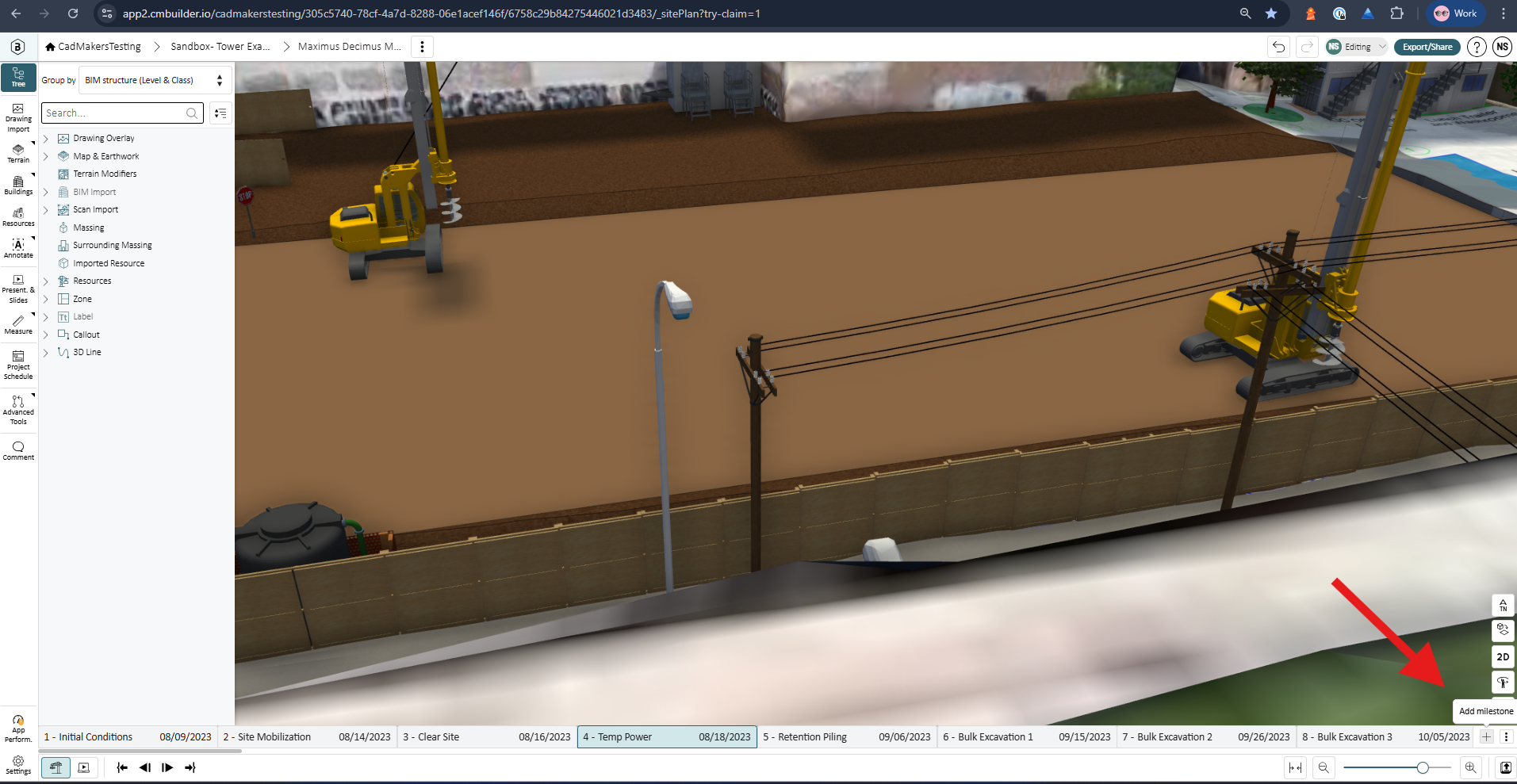
Hi Tanner Olson thank you for the question. You don’t see the center milestone panel because you’re using our new and improved UI. We’re currently updating the user guide to reflect these changes. In the new UI, you can create milestones using the + button in the bottom-right corner of your screen. See the image below for reference.
Please sign in to leave a comment.